Say you are working with a lot of open programs and Windows and need to shutdown the computer immediately. What if there was a utility which can save the status of all running programs, windows and processes and can resume them after a system restart?
Category: General
-
Windows Media Player Guide: 15 Tips and Tricks You may not Know
Windows Media Player comes by default when you install Windows. This guide is a collection of useful tips and tricks for Windows Media Player – playing FLV and other video formats, playing online radio stations, codecs, keyboard shortcuts and many more.
-
33 Useful Bookmarklets to Search From Your Browser
If you search on Google, Yahoo, Twitter and on other websites quite often, this collection of search Bookmarklets Will come in handy. These bookmarklets lets you search your favorite search engines from the bookmarks bar and works in all the popular browsers: Firefox, Google Chrome, Internet explorer, Opera and Safari.
-
The Best Sites to Create Anonymous Email Addresses
It’s foolish to reveal your real email address just for the sake of signing up to yet another forum, newsletter or web service. You can use Anonymous email addresses for one time signups, evaluating offers, accessing newsletters or ebooks, downloads and other random stuffs.
-
Portable Productivity Applications for Windows
Many of us have to travel places as our job demands so. But not all can carry a laptop for their purposes. This is when portable apps come into play. We can possibly carry our working environment along with us just within a USB drive without needing a portable computing device.
-
How to Transfer WordPress Blog From One Host to Another
There may be situations when you would want to transfer your self hosted WordPress blog from one hosting provider to another. Some of them are:
- You are getting heavy traffic in your blog and want to upgrade to a better hosting plan and get rid of frequent downtimes.
- Your current hosting plan is on a shared environment and you want to migrate to a dedicated server.
- The technical support of your current host isn’t prompt and you want a better option.
-
How to Lock Opened Windows, Running Programs And Minimized Apps
There may be times when you would like to lock and password protect program windows, running applications or a document you are currently working on. Here is an example case scenario at office, where you may want to avoid get caught by colleagues, your boss or maybe someone whom you don’t trust.
Example: You are working in a shared computer where more than one employees are allowed to use it, access files, check email or surf the web. You are working on something very private and want to ensure that noone else is able to see the content of the window or maximize it from the minimized position.
You don’t want to lock down the entire computer (in fact, you can’t). Instead, you are looking for something which can instantly lock a window with a keyboard shortcut and minimize the window to Windows taskbar. When someone else tries to maximize it, the program should ask for a password, which you have set up earlier.
Why Not Lock Down The Entire Computer Using The Keyboard Shortcut Win + L
Locking down the system is a good option but imagine the situation when every single person in the office knows the password of the shared computer. Worst thing is that you dont have administrative proviledges on that shard computer and thus you can never change the password of the current Windows user account.
Locking down the operating system won’t help as anyone can log back in and see which documents you were working on, what programs you have been using and which files you did modify in the last hour.
The solution here is to use Lockthis, a freeware utility which lets you lock specific programs and windows with a custom password of your choice. After installing the program, change the default password LockThis! to something you casn remember and it’s done.
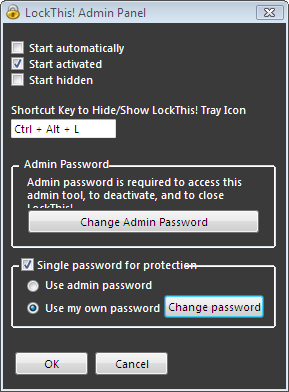
Now, when any of your friends borrows your computer for a minute or two, use LockThis to lock open applications, documents and currently opened program windows. When your friend tries to maximize a window which you were working on, he/she will be asked to enter a password. Nice and simple!
See How LockThis Lets You Password Protect Minimized Apps And Windows
The following video by Techzilla completely demonstrates how LockThis can be used to lock minimized windows with a password:
http://www.youtube.com/watch?v=T_opZLDdUiE
Whenever you need to lock a program or window, use the simple key combination (Ctrl + Alt+ L) and the window which you choose next will be minimized and locked. The only downside found is the program may not work with your browser (Firefox, Google Chrome, Internet Explorer).
Important Notes:
1. Some users have pointed out that using LockThis on your download manager application (e.g Internet Download Manager, Download accelerator plus or Microsoft download manager), may pause the downloads. You might want to check with the most recent release of LockThis and see whether that works fine or not.
2. LockThis won’t password protect any browser. Be careful than sorry!
-
Firefox Addons – That Make Me More Productive
Anybody who knows me, calls me a Firefox freak as I use it almost 90% of the time my laptop is on. So I decided to put in all the tools that makes my Firefox so friendly and productive. Following are the set of add-ons which makes my time(as a blogger and a reader) easier. Have a quick look, you might find some of your choice.
-
Open any Website from Firefox With a Hotkey You don’t have to remember
As time goes on the bookmarks toolbar is filled with dozens of links, Websites, Blogs etc. Learn how you can quickly navigate to a bookmark using Firefox keywords or by using a keyboard hot key.
-
How to Hotlink Protect Images Of Your Blog When Stored in Different Subdomain
When Mr X uses an image or file stored in your web server in his website, your image is said to be “Hotlinked”. That means, whenever someone is visiting Mr. X’s page, the image is pulled from your web server thus causing bandwidth theft. If you have a limited bandwidth quota and have to pay for extra bandwidth charges, it becomes quite necessary to implement hotlink protection for your website. (more…)
-

How to And How Not to Auto Loop Or Autoplay Youtube Videos
The YouTube video Auto-Play and Auto-Loop has mixed opinions. It is helpful for webmasters/bloggers who need an option to make sure their readers watch their demo videos on blogs. On the other hand, quite many YouTube users(like me), these features are quite annoying at times. So I’ll make sure both are benefited. This tutorial will demonstrate how to enable as well as disable the auto-looping and auto-playing feature for YouTube videos.
Let us start with a sample YouTube Video – Social Networking In Easy English.
How does Auto-Play work on YouTube ?
Whenever you click on a video URL on any YouTube Page (search page, homepage or channel page) the resulting video page opens and starts playing the video automatically. The reason behind is the URL(with a code) embedded in the link.
Disable the auto-play in YouTube
The URL looks like the screenshot above. The portion /watch?v=6a_KF7TYKVc does the job for them. If you want to tweak it so that the video is not auto-played, just change the URL as shown in the image just below.
Opening this link will make sure the video do not start playing automatically.
How to enable auto-play feature for viewing purpose only
The trick is pretty simple. Just add &autoplay=1 at the end of the URL to make the video starts playing automatically. Now if you are on YouTube and is clicking a video link to see it, then you do not need any trick, as its already tweaked by them to start playing automatically. But if you are copying it from any other webpage, check the url. If it has the /watch?v= attribute already appended you will need no tweaks. But if it has the /v/video-id format just append &autoplay=1 at the end and use the URL to view it.
How to use auto-play feature for embedding purpose
The default embed code looks as shown below. Now find the video URL within the embed code.
Now make the necessary adjustments to the video URL as shown in the screenshot below.
How to use auto-loop feature
All the previous rules apply while viewing and embedding. Just use &loop=1 in place of &autoplay=1.
How to enable both the auto-play and auto-loop feature
All the previous rules apply while viewing and embedding. Just use &autoplay=1&loop=1 without using them separately.
That’s all. Feel free to comment if you have any more questions on this trick. You may also like 10 Useful Youtube URL Tips and Tricks.
If you want to enhance your YouTube video viewing experience, these following browser extensions would be helpful.
1] Magic Actions
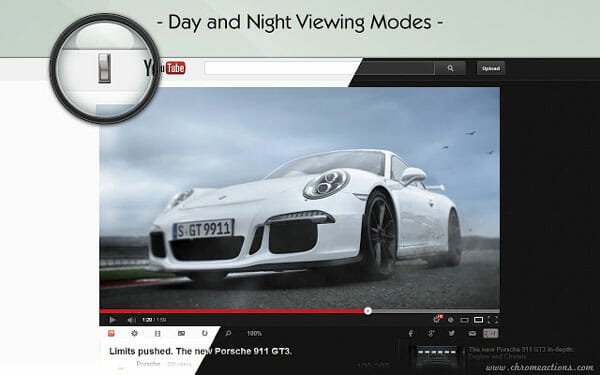
Magic Actions extension is one of the best tools available for YouTube users. It comes with countless awesome features to spruce up the user experience. It is available for Google Chrome and you can download it in Chromium-based Microsoft Edge as well. It lets you stop autoplay, repeat videos for a particular amount of time, hide comments, likes, related videos, etc. and many more. Apart from that, you can set auto HD, auto wide, block advertisements, control volume with mouse wheel, and more others. You just need to install this extensions and set it up while using YouTube.
2] Magic Enhancer For YouTube
Like Magic Actions, Magic Enhancer can uplift your YouTube using experience from the core. It has a very simple UI but you can find all the options as per your requirements. From using auto HD to enable cinema mode – everything is possible with the help of this extension. Apart from that, you can capture a frame from the video, hide all the additional stuffs including comments, related videos, etc. using this extension. If you do not like to spend 5 or 30 seconds to watch advertisements before watching an important video, you can install this extension as well. Although, YouTube introduced a dark mode, you can get additional black or dark theme after installing this extension.
3] YouTube High Definition

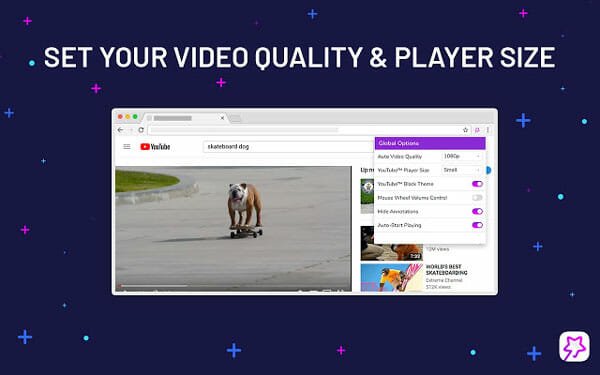
As teh name suggests, you can set highest resolution for all the videos automatically on YouTube. Many times we need to spend a couple of seconds to set 4K or 1080p resolution. If you do not want to do that before watching all the videos, you can install this browser extension. You can choose various resolution, turn off annotations, change video player size, automatically stop videos, and many more. It is quite easy to set thigns up. You can get the output once setup is completed. Download
4] Enhancer For YouTube
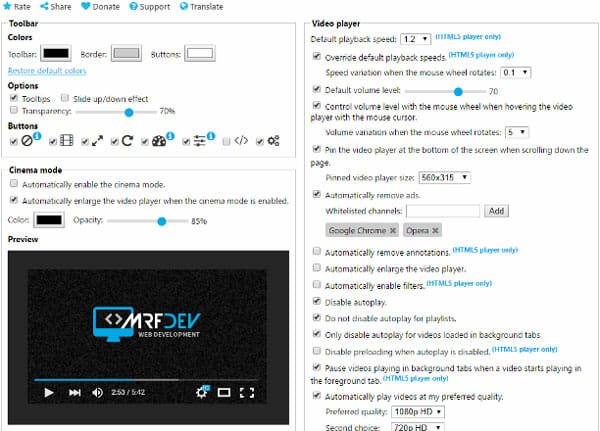
This add-on is available for Mozilla Firefox and it does pretty much the same thing as all three aforementioned extensions combined. Talking about features, you can control volume and playback speed using mouse wheel, remove annotations, set preferred resolution, loop videos, pin video player, and many more. Like said, you can block advertisements on YouTube. The best thing is you can whitelist a channel if you want to support the creator of that channel. There are lot of options that need to reviewed minutely. Otherwise, you may end up wasting time and hurting user experience. Download
-
Make your Blog Printer Friendly : Code and CSS for Printing a Webpage
It is a good practice to make your blog printer Friendly. Regular readers visiting your blog may wish to print some of your articles and it is advisable to use a separate stylesheet for print purposes. This article describes how to create a printer friendly blog by using a separate print.css file.
-
Blogging platforms that lets you blog from your Phone
Most of the times we bloggers find it difficult to blog due to insufficiency of resources like computer or an internet connection. But our readers are always hungry for posts and if we fail they may lose trust & in turn we may lose them too. Its like a nightmare to a blogger to lose even a single visitor. We can always avoid this situation if we could possibly post to our blogs via a portable medium.
-
Monitor Internet Data Usage Stats for Any Multi/Single-user Network
NetWorx Portable is a free tool that will let you control your internet usage with just a few clicks. You can put limit to your usage as well get notified when you have reached the limit. For a multi-user(or a personal PC) network like cyber-cafes or shared office networks you can automatically notify and disconnect an user from the Internet connection if he/she exceeds the defined quota.
-
How to Create Icon Files in Windows and with Online Tools
The ICO file format is an image file format used for icons in Microsoft Windows. The .ico format is used by Windows applications to show icons of folders, shortcuts, utilities etc.