How to Install a Local WordPress Blog and Transfer it in Web Server
You can install a local WordPress blog in your computer for various testing purposes. Using the local blog you can create new themes, plugins and perform other experiments. Here is a detailed guide on how to transfer the local WordPress blog in your web server with the same preferences, posts, plugins and themes.
Preeti asked:
I have a local WordPress blog in my computer made using Wamp. I want to transfer this blog in my web sever, with all the posts, pages, plugins, themes etc. What are the steps involved for the entire process.
Installing a Local WordPress Blog in your Computer with Wamp
Here is a step by step guide to install a WordPress blog in your system which you can use without requiring an internet connection. You can use this tutorial to install a WordPress blog in Windows XP, Vista and Windows 7.
1. Download the latest version of WordPress.
2. Download Wamp and install the application. During installation, Windows firewall will throw a message like this

Choose “unblock” and continue to finish the installation process.
3. Go to the directory of your wamp installation. Typically it would be present in the C drive as C > wamp.
4. Open the folder “www” and create a folder named test (the folder can be named anything but for the sake of this tutorial we will stick to the name “test”).
5. Extract all the files from the WordPress package in to this folder. So that means, all the core WordPress files will be present in “C:\wamp\www\test”
Thus the url of your Local blog becomes : http://localhost/test
6. Start the Wamp server program and select “Start all services” from the system tray icon.
7. Open your web browser and navigate to http://localhost/phpmyadmin. You will see something similar as shown below:
8. Now you are going to create a database for the local WordPress blog in your computer. In the “Create a new database” field type a name for the database of your blog. (e.g testblog)
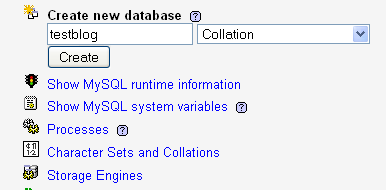
9. Go to the installation directory of your local WordPress blog ( C >wamp >www > test), right click the wp-config-sample.php file and rename it to wp-config.php.
10. Open the wp-config.php file with notepad or any Html editor and enter the following details:
DB_NAME : testblog (name of the database)
DB_USER: root
DB_PASSWORD: (keep it blank)
DB_HOST: localhost
Here is the screenshot of the database details
11. Now open http://localhost/sqlitemanager/ in your browser.
12. Enter the database name you created in phpmyadmin (in this case it’s “testblog”).
13. Click the Browse button and navigate to the following path
C >wamp > bin> mysql > data >testblog
You will find a “db.opt” file in that folder. Select the file and the checkbox “upload database”. Hit save when you are done.
14. Open your browser and browse to the address of your local blog (in this case http://localhost/test).
15. Bingo ! You will see the WordPress installation screen. Give a Blog title and enter any email address and hit “Install WordPress”.
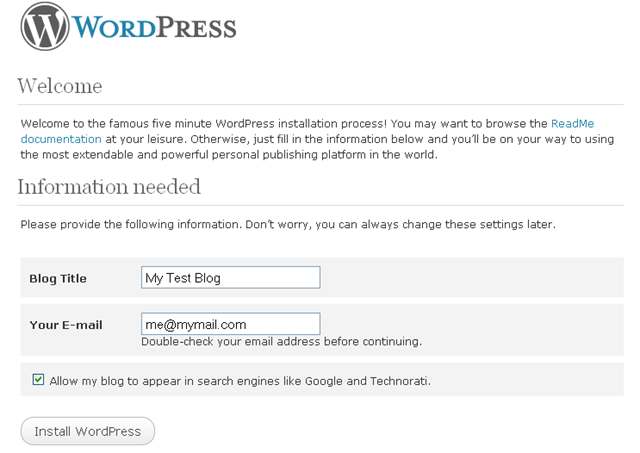
WordPress will be installed and you will be given a username and password to login to your dashboard.
Note: If you do not see the Installation page, probably you missed out something. It’s better to restart the process from scratch.
Configuring the Local WordPress Blog
Now that the Installation part is over, you can start customizing your local blog. At first, login to your local blog and change the password to something you can remember. You can install all the plugins, themes, write posts, pages and do the necessary customizations in your local WordPress blog. After you are satisfied with all the customizations, it’s time to move the blog in your web server.
How to Move the Local WordPress blog in your Web server
Let us suppose you want to transfer the local WordPress blog in your computer (http://localhost/test) into your web server at www.yoursite.com/blog. While you can do it at your root directory as well, for the sake of this tutorial, we have chosen http://www.yoursite.com/blog as the web address.
Before you read on, here are a few points to take note of
Scenario A: You already have an installed WordPress blog in your web server. You just want to transfer the local blog in the same installation directory ( e.g http://localhost/test > http://www.yoursite.com/blog).
Scenario B: You do not have an online WordPress blog. You want to transfer the local blog in to a newly created online blog.
Following are the steps involved to perform the migration of your local WordPress blog to your Web hosting account:
1. At first, disable all the plugins in your local WordPress blog.
2. Backing up the database of your Local blog: Next, you need to back up the database of your local WordPress blog. You can use a database back up plugin to back up the database of your local blog or you can back up the database from phpmyadmin as well.
To back up the database from phpmyadmin, open http://localhost/phpmyadmin in your browser and select the database of your local blog (in this case “testblog”).
Navigate to the “Export” tab, keep everything untouched, scroll down and select the checkbox “Save as file”. Then click “Go” and you will be prompted to save the database in Sql format.
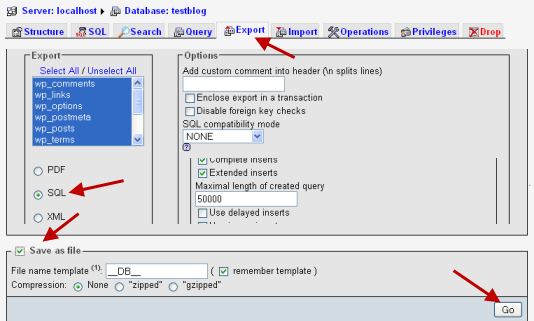
3. Very important: Open the database backup file (testblog.sql) in notepad. We have to replace the URL of the blog with the newer url of your blog where you will be mounting the database.
For example : If your local blog’s url is http://localhost/test/ and your web blog url is http://www.yoursite.com/blog then you will have to replace every url (http://localhost/test/ with http://www.yoursite.com/blog in the database).
Once you open the database file in notepad, search for your local blog’s base url ( in this case it’s http://localhost/test). Replace the Url with the root address of your Web blog. (http://www.yoursite.com/blog). Use Ctrl + F to find the local blog’s base URL in notepad and then paste the web blog’s base URL. Next, hit “Replace all” and you are done.
4. Now it’s time to upload all the core WordPress files, themes, plugins etc. Open your FTP program and upload all the files of your local WordPress blog in to your web server
If you already have all the WordPress files uploaded in your web server then no need to upload them again. Just delete the “Wp-content” folder and upload the “Wp-content” folder of your local blog in the respective directory.
It would be better to do a fresh migration and hence it is recomended to delete all the old files and start afresh.
For example : If you want to install WordPress at your web server at http://www.yoursite.com/blog then first delete all the files and then upload all the files from C:\wamp\test in that web directory
5. Once the upload is complete, login to the C panel of your web hosting account. We will create a new database and import the database of the local WordPress blog here.
Create a new database in your web hosting account, using the database wizard. Create a new database user and give all the privileges to the user you just created.
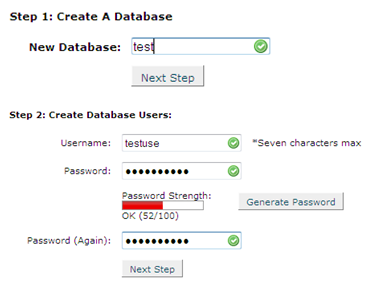
5. Open your FTP software and browse to the directory where you have uploaded your WordPress files.
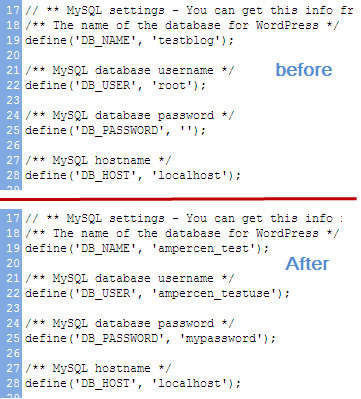
6. Download the wp-config.php file in your computer and open it in notepad for editing
7. The wp-config.php file will still contain the database information of the local blog. You will need to update it with the database information you created in step 2.
Here is how the wp-config.php file looks
8. After updating the wp-config.php file, upload it back at your web server’s WordPress installation directory. ( i.e http://www.yoursite.com/blog)
9. Now browse to the root of your blog. You will see the installation screen of WordPress.
10. Do not install WordPress from here on. We will mount the database of your local blog in to this database.
11. Open the C panel of your Web hosting account and navigate to PHPMYADMIN.
12. Select the database you created in step 3 from the left pane and click the import tab
13. Click the browse button and upload the database backup of your local blog that you backed up in step 3. Hit “Go “ when done.
14. Hopefully, importing of the database will be successful.
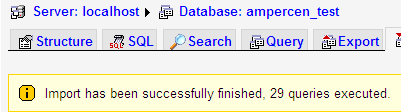
15. Browse to the root of your Web blog. You will see the exact copy of your Local blog in your web server.
Do let us know whether you were able to transfer the local blog in your web server or not through a comment
Good Tutorial bro….no error It’s working 100%. Keep it up!…
That’s really a good tutorial ! I’m going to bookmark it !