How To Type The New Indian Rupee Symbol in MS Word

Now that the new Indian Rupee symbol is official and the government has acknowledged it, its time for users to start using it. When I say “use” I mean type it. Its too early to get the font officially on your keyboard with a key assigned for it like the “$” symbol. If you can’t wait until then learn how you can type it in Microsoft Windows.

type new indian rupee symbol microsoft word

Steps To Type New Indian Rupee Symbol :

1. Download the Rupee Foradian Font from the Mangalore based Foradian Technologies Pvt Ltd blog. Copy the .ttf file after downloading.

2. Open [Windows Drive Letter]:\Windows\Fonts and paste the font there. It will be installed on your PC.

3. Once done, open your MS Word (or any text editing tool that lets you change the font of the text) and type “`” on your keyboard. It is the leftmost key in the number row (not Numpad) i.e just to the left of “1” or just above the Tab key.

4. Select the text (`) and change the font to Rupee Foradian. Bang and the new Indian rupee symbol is there.
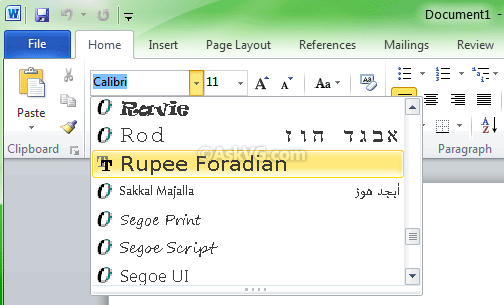
If you are still facing some problems doing it just visit Youtube and watch this video tutorial.

ADVERTISEMENTS

You may also like to read:

  • Amartya Bag

    How to Use the Indian Rupee Symbol in Microsoft Office

    1. Download the Font (Rupees Foradian) provided by Foradian Technologies Inc (http://blog.foradian.com)
    2. Install the font. (Copy the Font to Control Panel -> Fonts Folder)
    3. Change the Font from the default (Times New Roman/ Arial/ Calibri) to Rupees Foradian Font.
    4. Type the Rupees Symbol in Microsoft Word through the grave acent symbol – ` (the key just above “tab” button in your keyboard).

    The process can be tweaked so that you can type in any font in MS Word yet you can get the Rupees symbol:

    In MS Office 2002

    1) Select the symbol (ie. Just like you do while copy pasting anything)
    2) Click on Tools -> Autocorrect
    3) In the Replace Text Box type in Rs.
    4) Click on Add -> Ok

    In MS Office 2007/ 2010

    1.If you want to add a formatted text entry, open the document that contains the text that is formatted the way that you want, and select the Rupee Symbol.
    2.Click the Microsoft Office Button, and then click Word Options.
    3.Click Proofing.
    4.Click AutoCorrect Options.
    5. In the Replace Text Box type in Rs. (You may also need to change the formatting stle from “Plain Text” to “Formatted Text”)
    6. Click on Add -> Ok

  • http://www.ampercent.com Soumen Halder

    @Amartya Thanks for suggesting such a nice way to improve the trick. Thanks once again for adding value. Will be happy to see more of you on this blog.

  • http://www.techtipsgeek.com Tanmay

    Nice tutorial! But you can also create the font of Indian Rupee yourself and use it in any Windows application. Sorry, I can’t describe the procedure here. You can read it from this link.

  • http://www.ampercent.com Soumen

    @Tanmay thanks for the tip. I’m sure our readers will love it. Keep up the good work.

  • Vikas K. Sangwan

    Indian rupee symbol is going to be used in computers lateron but with this method now the rupee symbol is going to be used worldwide. Aware the others so that rupee symbol is used maximum at the earliest.
    Be Proud.
    Being Indian.

  • http://www.ampercent.com Soumen Halder

    @Vikas Proud to be Indian buddy.

  • KMB

    Thanks. Quite useful

  • http://rajudas.co.cc raju

    Here is a better alternative font.

    http://rajudasonline.spaces.live.com/

    In this font, the rupee sign is mapped to Unicode Rs symbol, so if the font is not present in the PC where a document containing this symbol is viewed, then the old Rs sign will be shown, which is better then showing a accent sign in place of Rs sign.

  • bhushan

    thanx,
    its really usefull but i am unable to type it in microsoft powerpoint 2003.

  • vishal

    Thank You

  • Prabhat

    Thanks for getting the new rupee symbol in MS-Word. I have done that, but how to get it in control panel>regional options settings so that it appears in MS-Excel also.

  • mital

    Loved the rupee font, but is it that it cant be used in calculation of values in MS-Excel. And if it can please help on the procedure.

  • NeRo

    dat was coooooool

  • http://www.ampercent.com Soumen Halder

    Glad that you guys loved it

  • http://google.com Rajesh

    hi i got it Symbol of rupee

  • http://www.ampercent.com Soumen Halder

    @Rajesh Nice that you got it bro.

  • TVRAO

    I have done as prescribed. But on hitting tab it goes to next line instead of continuing on the same line. why

  • http://www.ampercent.com Soumen Halder

    @TVRAO I understand your concern. Unfortunately, the tutorial clearly states that you have to use the button “just to the left of “1” or just above the Tab key” not the Tab key itself. Try using that key and please let me know if it worked. Thanks for posting.

  • Arjun

    How can I put this rupee symbol into forums ???

    can anyone tell me please

  • http://www.ampercent.com Soumen Halder

    @Arjun it would depend on the webmaster of that forum as the symbol is not yet recognized as a standard character. Although if you have rights to include images in the forum, you can try using an image as replacement. Hope that helps.

  • Rajesh Kumar Singh

    It is not working in Ms Word but works in Ms Excel. Any help!!

  • http://www.ampercent.com Soumen Halder

    @Rajesh Have you got other text editors which supports rich-text format ? Try with it. Can you be more specific about the problem. I mean in which step did you get stuck? Or something that is more precise…

  • http://www.ampercent.com Soumen Halder

    $h!va You can try other methods posted by our commenters.

  • $h!va

    ya… got it , thanks mr soumen

  • Chittaranjan Mridha

    Hi….I got it, thanks

  • http://www.ampercent.com Soumen Halder

    @Chittaranjan Glad to help you.

  • Priyank Singh

    Thanks to Amartya…:)

  • R.Sivakumar

    Very useful tips. Thank you I got it. by R.Sivakumar

  • http://www.ampercent.com Soumen Halder

    Thanks @Sivakumar.

  • vee

    I can type the rupee symbol in rupee foradian font only. However if I change the font to regular ones, like Arial or Times New Roman, it is again showing its normal keyboard symbol and not the rupee symbol. Can you help me in this regard how to get the symbol in MS word even I change the font

  • Gopi

    I was also looking for an answer to it. Searched thru the web but could not find any solution. Anyone has the answer please?

  • http://www.ampercent.com Soumen

    Hi Vee and Gopi,that is not possible right now as the Rupee symbol is not yet included as a standard character. You can do what you are willing to do now once it is approved as a standard character.

  • http://www.problogbooster.com Vinayak

    Thanx, its really usefull..bt how can we use this on facebook? or nay html page…???
    ProBogBooster.com

  • Brajendra Singh

    its to simple. Thanks for developing this fonts. I am proud to be and Indian.

  • http://zindgilivehub.blogspot.com rahul sethi fatehabad

    thank you very much………..

  • Naresh Shahare

    thanks for the information.

  • http://www.ampercent.com Soumen

    Thanks Naresh…

  • Subhasis

    Thxxxxxxxxxxxxxxx u had given me a nice comment

  • anirban

    Thanx dude for hlpin me in usin the new rupee sign….

  • dipak

    nice simbol

  • naveen gangwal

    thanks guys proud to be Indian finally we can use our symbol

  • Pingback: netbook

  • Pingback: Property for sale in Alanya

  • Pingback: online business ideas

  • Pingback: Bad credit loans

  • Pingback: HESI A2 test

  • Pingback: เอเชีย

  • Pingback: site seo analyzer

  • Pingback: adipose ambidexterity beltmaking

  • Pingback: ofis krtasiye

  • Pingback: www.getpaintlessdentrepair.com

  • Pingback: cell phone and accessories

  • Pingback: stryker hip replacement recall

  • Pingback: disaster preparedness

  • Pingback: e cigarettes where to buy

  • Pingback: bronze doors

  • Pingback: T-Bots

  • Pingback: recent celebrity news

  • Pingback: lyric music videos

  • Pingback: rotary cuff tear

  • Pingback: netbook kopen

  • Pingback: coaching career

  • Pingback: paintless dent removal

  • Pingback: click

  • Pingback: green coffee bean extract max

  • Pingback: locksmith dallas tx

  • Pingback: paintlessdentrepairnow.com

  • Pingback: cardiovascular problems

  • Pingback: learn this here now

  • Pingback: Homepage

  • Pingback: 申根签证