How to configure outlook 2007 for Google Apps and G mail ?
Microsoft outlook is a Great Desktop Application for managing Emails. Using MS-Outlook saves you time and keeps your Emails organized.This article describes how you can Set up your Gmail account and your Google Apps account in MS-Outlook 2007.
Note: If you are using Outlook 2010, read this guide to configure Outlook 2010 for Gmail
Configure Outlook for G mail
Configure G mail : Open your G mail Inbox.Click on “Settings” and enable the “Forwarding and POP” Settings as shown below.
Configuring Microsoft outlook :
- Open MS-Outlook and from the Tools Menu select “Account Settings”.Create a New account by clicking “ New “ from the E-mail Tab.
- If you are prompted to choose Email service select Microsoft Exchange, POP3, IMAP, or HTTP, and click Next.
- Fill the Necessary fields and Hit Next.Remember to check the Checkbox “ Manually Configure Server Settings or additional Server types”.
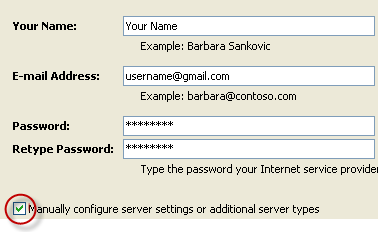
- Select “Internet Email “ and Click Next.
- Enter the Settings as Shown in the following screenshot :
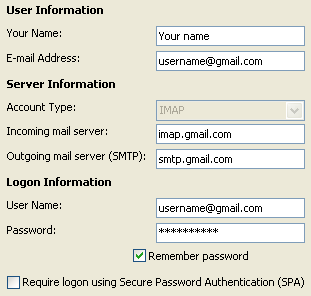
Leave the Option “ Require logon using Secure Password Authentication (SPA)” unchecked. - Now Click on “More Settings” and Select the “Outgoing Server “ tab.
 Check the Checkbox “ My outgoing server(SMTP) requires authentication “.
Check the radio Button “ Use same Settings as my incoming mail Server “. - Now Select the Advanced tab and Modify as shown :
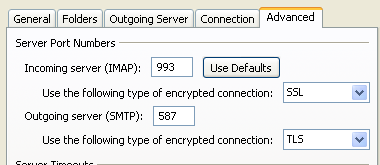
Set the Incoming Server (IMAP) port number as 993.Use “ SSL” as the Encrypted connection
Set the Outgoing Server (SMTP) port number as 587 .Use “ TLS” as the Encrypted connection. - Now click OK.
Test your Settings : Click on “Test account Settings” and outlook will send a test mail to your account.After you receive the mail in your G mail click Next and then Finish.
Configure Outlook For Google Apps Account
1.Configuring your Google Apps Mail : Open your Google Apps mail account.Click on settings and Enable the “Forwarding and POP” Settings as shown below.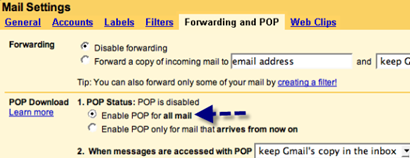
Click the Radio box “Enable POP for all Mail “ and Save your Settings by clicking the Save changes Button.
2.Configuring Microsoft Outlook :
- Open MS-Outlook and from the Tools Menu select “Account Settings”.Create a New account from the E mail Tab.
- If you are prompted to choose Email service select Microsoft Exchange, POP3, IMAP, or HTTP, and click Next.
- Fill the Necessary fields and Hit Next.Remember to check the Checkbox “ Manually Configure Server Settings or additional Server types”.

- Select “Internet Email “ and Click Next.
- Enter the Settings as Shown in the following screenshot :

Leave the Option “ Require logon using Secure Password Authentication (SPA)” unchecked. - Now Click on “More Settings” and Select the “Outgoing Server “ tab.
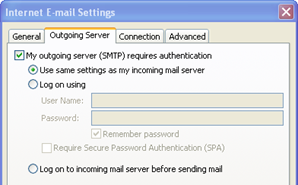
Check the Checkbox “ My outgoing server(SMTP) requires authentication “.
Check the radio Button “ Use same Settings as my incoming mail Server “. - Now Select the Advanced tab and Modify as shown :
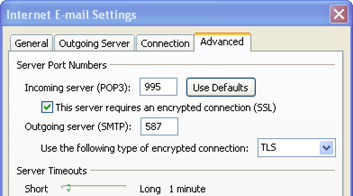
Set the Incoming Server (POP3) port number as 995 and Set the Outgoing Server (SMTP) port number as 587
Use “TLS” as the Encrypted Connection. - Now Click Ok.
Test your Account Settings : You can test your Account Settings by Clicking “ Test Account Settings “. This will Invoke outlook and Outlook will send a test-mail to the account specified.After you get the mail it is confirmed that your settings are Working fine.Click Next and then Finish